YarmiplayTV user manual
YarmiplayTV plays videos in sync with friends, wherever they are. It's a Syncplay client with the mpv player built in, for Google TV and Android TV, Android phones and tablets, and Windows, macOS and Linux. Videos come from your Jellyfin or Plex servers or from files on your device, and everyone in the room plays, pauses and seeks together, also with friends who use the desktop Syncplay client.
Getting started
YarmiplayTV is free. Get it for your device from the download page.
Google TV and Android TV
- Install Downloader from the Play Store on the TV (or join the Google Play test).
- Open Downloader and enter
tv.yarmiplay.com/a. It downloads the YarmiplayTV APK. - Allow Downloader to install apps when Android asks, then install YarmiplayTV.
Everything works with the remote: the arrows move, OK selects, Back goes back.
Android phones and tablets
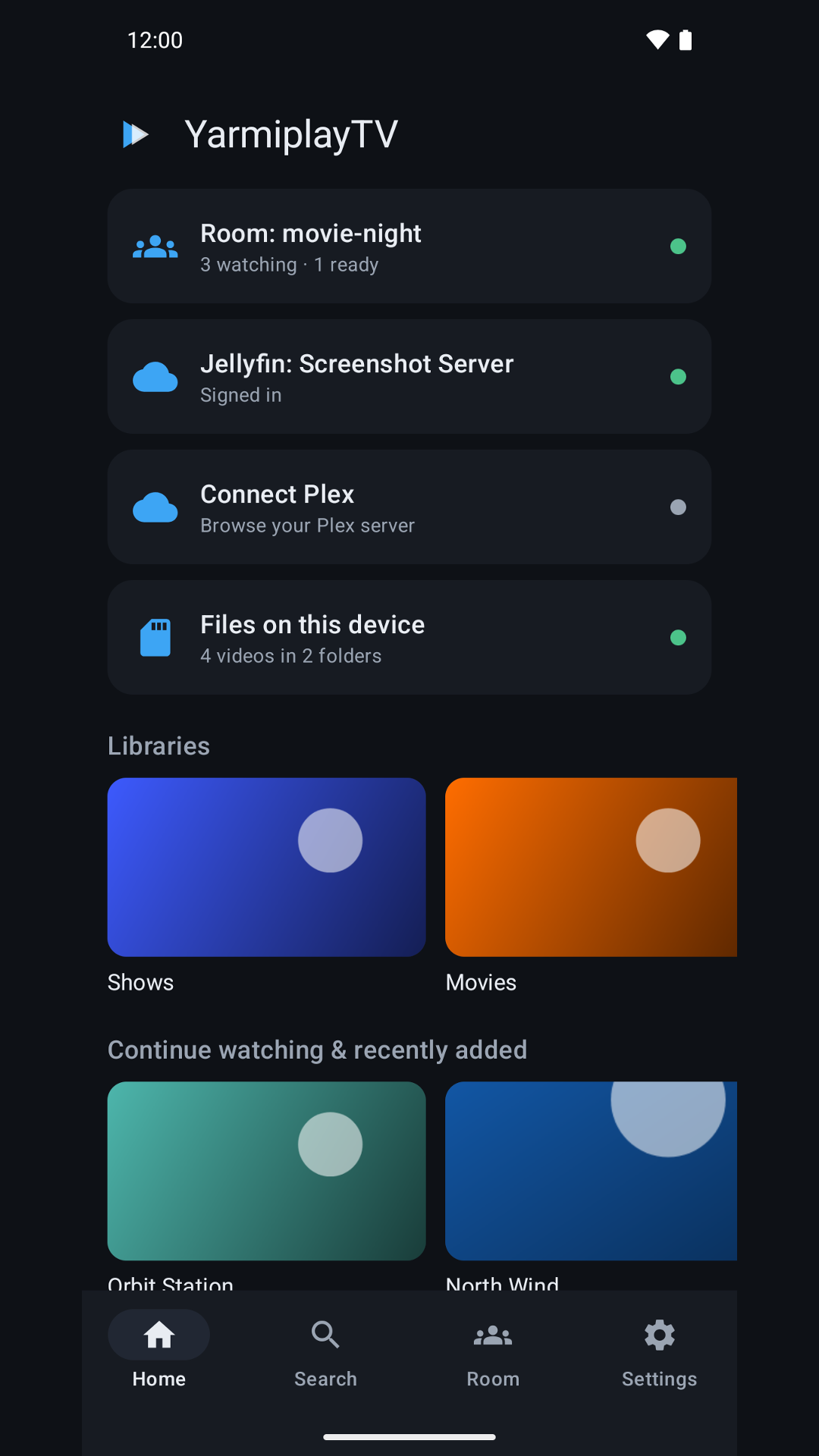
Install it from Google Play, or download the APK from the download page and open it. The first time, Android asks you to allow installing apps from your browser.
Windows, macOS and Linux
- Windows: the Microsoft Store, the installer (
.msi),winget install Yarmiplay.YarmiplayTV, or the portable zip (unzip it anywhere and runYarmiplayTV.exe; it keeps its settings next to it). Browsers and SmartScreen may warn about the.msiand the zip because they aren't code signed; choose Keep and Run anyway. - macOS: the disk image (
.dmg). It needs mpv from Homebrew: runbrew install mpvfirst. The first time, right-click YarmiplayTV and choose Open. - Linux: the
.debfor Ubuntu and Debian (sudo apt install ./yarmiplaytv_*.deb), or Flathub, the Snap Store or the AUR where listed on the download page.
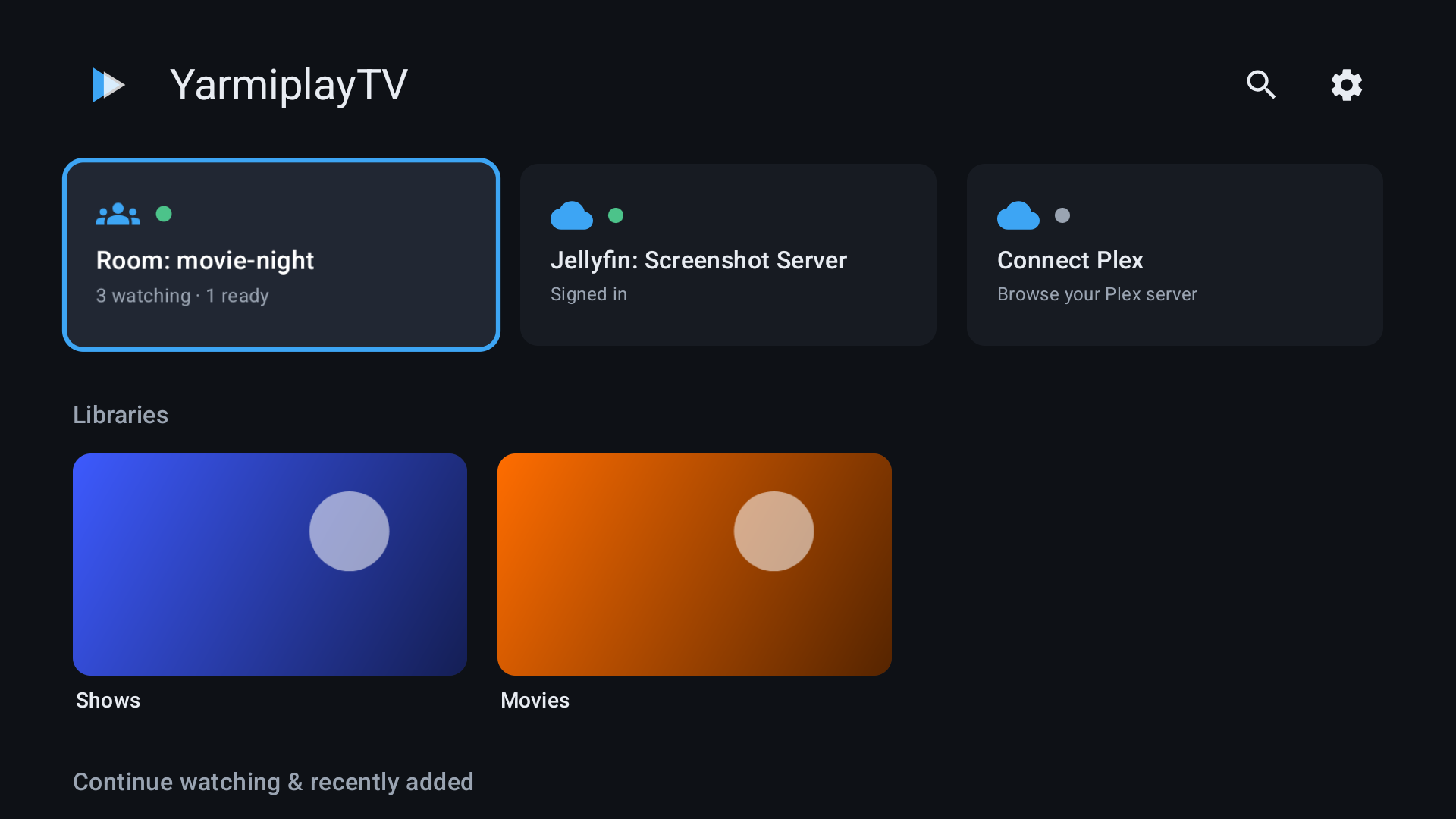
The home screen
Home has a card for each way to watch:
- Join a Syncplay room (or the room you're in, with how many are watching and ready).
- Now playing, while something plays.
- Jellyfin and Plex: add a server, or see the ones you're signed in to.
- Files on this device (phones, tablets and desktop): open a video or add media folders.
- MyAnimeList: sign in, or open the MyAnimeList screen.
Below them are your libraries, "Continue watching" for each server, and recently added videos. The Player tab (phones, tablets and desktop) brings back the player from any screen.
Joining a Syncplay room
Everyone who watches together joins the same room on the same server. Open Join a Syncplay room and fill in:
- Server and Port: the public servers are
syncplay.plon ports 8995 to 8999; tap one of the public server buttons to fill them in. Your friends' Syncplay shows the server they use. - TLS encrypts the connection when the server supports it. Leave it on.
- Your name, as the others will see it.
- Room: any name. Anyone who knows it can join it on that server, so pick one that's hard to guess, or use a server of your own with a password (More options > Server password).
Then choose Join room. The first time, the app shows the community rules: agree to them to join. The rules are also at tv.yarmiplay.com/terms.
Recent and saved rooms
Every room you join is listed under Recent rooms on the join screen, with its server and your name. Tap one (or Rejoin) to join it again without typing anything.
Rooms you come back to often can be saved: tap the star next to a room, give it a name if you like (for example "Anime night"), and it moves to Saved rooms at the top. Saved rooms stay until you remove them; recent rooms keep the last 15. The ⋮ menu renames a saved room, removes it from the saved ones or forgets it. Save this room on the join form saves a room you type in as soon as you're in it. While you're in a room, the star next to its name saves it too.
When you're disconnected, the home screen's room card offers to rejoin the last room.
Found on your network
If someone on your Wi-Fi or Ethernet hosts a room with YarmiplayServerTV, the join screen lists it under Found on your network: pick it to fill in the server. The app only looks on Wi-Fi or Ethernet, never on mobile data. Ordinary Syncplay servers aren't found this way; type them in.
In the room
The Room tab shows, in order:
- Shared playlist: everyone in the room sees and edits the same list.
- Chat: messages from the others, and yours. Hide chat hides it; tap a name to block it (until you leave the room).
- The people in the room: who's ready, what each one is playing, and warnings when someone's copy of the file differs from yours (a different size or name; playback still syncs).
- Switching rooms, managed rooms, Edit connection and Disconnect.
On a computer or a wide tablet these sit side by side: the playlist, the chat, and the room.
Ready: everyone marks themselves ready before the video starts. By default you're ready when a playlist entry has loaded; Settings > Syncing changes when you're ready and what happens when you unpause.
The shared playlist
Add videos from your library, your files or a link. When someone selects an entry, every viewer's app finds that file by its name, in this order:
- Your media folders.
- A media server with exactly that file name (Settings > Preferred server decides when several have it).
- A looser match: punctuation and case ignored, then a title search.
While one entry plays, the next one is already looked up, so moving on starts at once. The player's previous and next buttons move the whole room to the neighbouring entry. If the file isn't anywhere you have it, the player says so and lets you pick a file by hand.
Each room's playlist is remembered and put back when you rejoin a room whose playlist is empty (Settings > Remember room playlists).
Media servers and files
Jellyfin
Choose Jellyfin on the home screen. Servers on your network are listed; otherwise type the address (for example http://192.168.1.10:8096). Sign in with Quick Connect (enter the code in another Jellyfin app under your profile > Quick Connect) or with your user name and password.
Plex
Choose Plex, then go to plex.tv/link on your phone or computer and enter the code shown. Pick the server to use. You can add several Jellyfin and Plex servers; their libraries show side by side and searches cover all of them. Settings > Media servers adds or signs out of each one.
While you watch, the app tells your servers how far you got and marks a video watched at 90%. It never jumps to a server's saved position, because the room decides where everyone is. Settings > Report progress to your media servers turns this off.
Files on this device
On phones, tablets and computers you can open a single video, use Open with from a file manager, or add media folders. Videos in media folders are found automatically when a room plays them, like the desktop Syncplay client's media directories. On a computer you can also drop files on the window.
The player
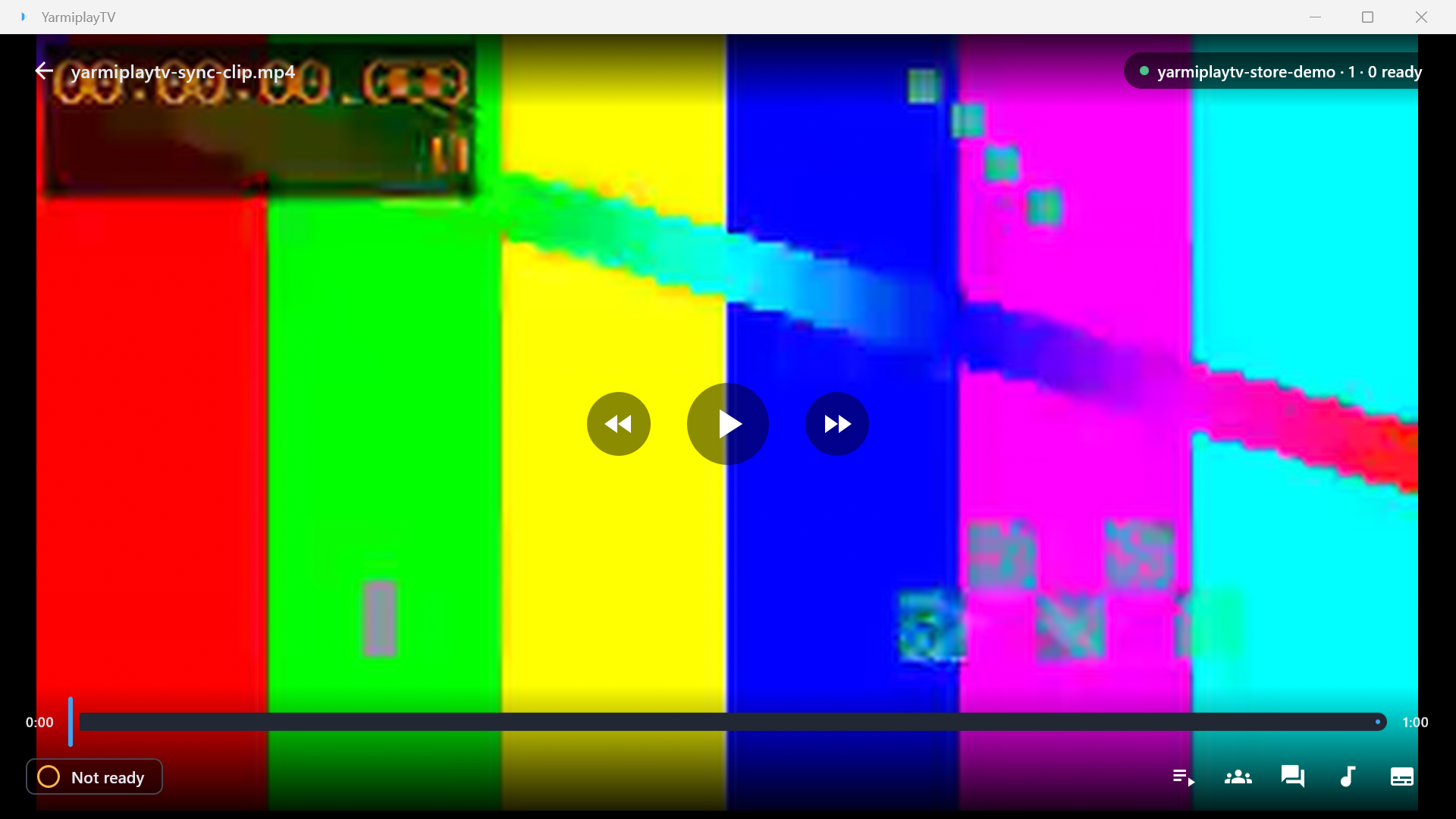
Tap or move the mouse to show the controls: play and pause, back and forward (double-tap the left or right side of the video on a phone), the previous and next playlist entry, the seek bar and the volume. The buttons at the bottom open the shared playlist, the room, the chat, audio tracks, subtitles and MyAnimeList.
- Audio and subtitles: pick a track in the player. Settings > Playback sets the languages chosen automatically.
- Screenshots: the camera button saves the current frame to Pictures/YarmiplayTV (or a folder you pick in Settings).
- Hardware decoding is on by default; turn it off in Settings > Playback if a video doesn't play right.
Keys on a computer
- Space or K: play or pause
- ← / → or J / L: back or forward
- ↑ / ↓ or the scroll wheel: volume; M: mute
- N / B or the media keys: next or previous playlist entry
- F or F11: full screen; Esc: leave full screen or go back
- F5: screenshot
- H: hide or show the controls
- P: picture-in-picture
- Enter: open the chat
On a computer, the player's playlist, room and chat buttons open a side panel. In its playlist you can add videos, folders or links, drag to reorder, select several with Ctrl or Shift, remove with Delete and undo with Ctrl+Z.
Picture-in-picture
- Android phones, tablets and TVs: leaving the app while a video plays keeps it playing, in sync, in a small window over other apps (Settings > Playback can turn this off). The picture-in-picture button does it too.
- Computers: P, the picture-in-picture button, or minimizing the app while a video plays (Settings > Picture-in-picture when minimized) moves the video to a small window that stays on top while you use the rest of the app. Hover over it for play, pause, seeking, the volume, the way back and close. Drag it to move it, drag its corner to resize it, and double-click it or press Esc to go back.
Managed rooms
In a managed room only its operators play, pause, seek or change the playlist; everyone else follows them. Managed rooms work on the official Syncplay servers and on YarmiplayServerTV.
- Create managed room (on the join screen, or in the room while connected) makes one from the room name and makes you its operator. You get its full name (such as
+movie night:D6A85289CDB5) and an operator password, each with a copy button. - Share the full name with everyone who should join, and the password only with those who should be operators too. They type the password on the join screen or under Operator password in the room.
- Operators can mark others ready or not ready. Passwords are remembered, so you're an operator again whenever you rejoin.
MyAnimeList
YarmiplayTV can keep your MyAnimeList list up to date as you watch.
Signing in
Choose the MyAnimeList card on the home screen. You sign in on MyAnimeList's own page: in your browser on phones, tablets and computers, or in a page inside the app on TV. YarmiplayTV never sees your password. Once you're signed in, the same card opens the MyAnimeList screen: your account, what's playing, your list (watching, plan to watch, completed), the shows you matched by hand, the shows you don't track, and updates waiting to be sent.
Automatic updates
When you've watched 90% of an episode, the app updates your list: the episodes you've watched (never fewer than before), Watching when you start a show, Completed with the date at the last episode, and Rewatching when you watch a completed show again. A message shows what changed, with Undo. If you prefer, Ask before each update on the MyAnimeList screen asks first every time, and Update my list as I watch turns it off.
Seasons, parts and episode numbers
MyAnimeList has a separate entry for each season, and sometimes for each part of a season. Your library may number episodes per season or from the start of the show. The app works this out by itself, by following the show's seasons on MyAnimeList in order (each entry's prequel and sequel):
- Season and episode: season 2 episode 5 is the second season's entry, episode 5.
- Episodes counted from the start: episode 27 of a show whose first two seasons have 12 episodes each is season 3, episode 3.
- Seasons in parts: when MyAnimeList splits a season into parts (Attack on Titan's "Season 3" and "Season 3 Part 2"), the parts count as one season, so season 3 episode 15 is "Season 3 Part 2" episode 3.
- Movies, OVAs, specials and recaps don't count.
Only when it can't tell does the app ask Which MyAnimeList entry is this?: pick the entry and which of its episodes this is. Your choice is remembered for the show, so the next episodes go by themselves. Wrong entry? in the player's MyAnimeList panel fixes a match, and Don't track this show stops tracking it.
In the player
The player's MyAnimeList button shows the entry for the episode you're watching: its episode, your status and score. Change the episodes watched, the status or the score there, mark the episode watched, or undo the last update. Shows in your library have the same options under MyAnimeList….
Everything YarmiplayTV keeps for MyAnimeList stays on your device, and Sign out deletes it all. See the privacy policy.
YarmiplayServerTV
A room hosted with YarmiplayServerTV offers more than a plain Syncplay server. On other servers YarmiplayTV works as a normal Syncplay client.
- Device access: the host approves each device once (compare the code both screens show); after that it joins without the server password. Settings > Device name sets the name the host sees.
- File relay: when only someone else in the room has the playlist's file, you can watch it streamed from their copy through the server, or downloaded first when your connection is slow. The next entry's start is fetched ahead so it begins at once. Relayed files are kept for at most a day and deleted when you leave the room. Settings > Share my files with the room stops your device from offering its files.
- Shared Jellyfin: a Jellyfin server the host shares is added for you as "name (via server)".
- At home: a server with a certificate (for example
myname.duckdns.org) works with TLS at home even when your router can't reach its own address from inside; the room shows "Connected at home via …".
Updates
Settings > Updates > Check for updates looks for a new version on every device, and installs it the way your copy was installed:
- Google Play: updates through Google Play, from the app.
- The APK from the download page (phones, tablets, TVs): downloads the new APK and asks Android to install it. The first time, allow YarmiplayTV to install apps when Android asks.
- Windows installer: downloads and installs the new version, then restarts the app. With Automatic updates on, it updates before the app opens, with a small window you can skip.
- Windows portable zip, macOS and the Linux
.deb: download the new version and replace this one, then restart (Linux asks for your password). - Microsoft Store: opens the Store page, where Update is.
- Flatpak, Snap and the AUR: shows the command that updates it, to copy, and opens your software center.
Turn off Check for updates when the app starts in the same section to only check when you ask. After an update, the home screen shows what's new once; Settings > About > What's new has it any time, and the patch notes page has every version's.
Settings
On a computer or a wide tablet, settings are grouped in categories on the left:
- Media: media servers, media folders, the preferred server, reporting progress, shared servers, sharing your files with the room, and where saved files and screenshots go.
- MyAnimeList: opens the MyAnimeList screen.
- Syncing: when you unpause, catching up and slowing down, when you're ready, remembering playlists, the chat, and your device's name.
- Playback: hardware decoding, picture-in-picture, the seek step and the audio and subtitle languages.
- Updates: checking for and installing new versions.
- About: the version, what's new, this manual, the website, privacy, the community rules, the source code, reporting a problem, and open-source licenses. On a TV, these links show a QR code to open on your phone.
Troubleshooting
I can't connect to the server
- Check the server name and port with your friends. The public servers are
syncplay.pl, ports 8995 to 8999. - A server with a password needs it under More options.
- The join screen says why it can't connect, and keeps trying while it reconnects. Cancel stops it.
"The server's TLS certificate isn't valid"
The server's certificate doesn't match the name you typed. Use the name the certificate is for (often the server's DuckDNS or domain name, not its IP address), or turn TLS off for that server.
The playlist says a file wasn't found
The file has to be on one of your media servers or in a media folder, with the same file name the others have. Add the folder or server, or choose a file by hand from the message in the player. On a YarmiplayServerTV, a file someone else has can be relayed to you.
We're out of sync
The app catches up by itself: it slows down a little or jumps back when you're ahead (Settings > Syncing). If someone's file is different (the room list warns about it), the same moment can show different pictures; use the same file.
MyAnimeList asks which entry an episode is
It asks only when it can't tell, for example when the show's name in your library is very different from MyAnimeList's. Pick the entry once; the app remembers it for the show. If it picked the wrong one, choose Wrong entry? in the player's MyAnimeList panel.
Privacy and links
YarmiplayTV collects no data: no accounts, analytics or ads. It connects only to the servers you choose.